 Jade Note
MCP Server Documentation
Connect ChatGPT to Jade Note
To connect ChatGPT to Jade Note, install the Jade Note app in ChatGPT and
sign in to Jade Note to approve access. ChatGPT can then search, read, create, and edit your notes
as persistent memory. If you prefer to add the server yourself, register
https://api.jadenote.app/mcp as a Custom MCP in ChatGPT's developer mode.
https://api.jadenote.app/mcp
Streamable HTTP
OAuth 2.0 (PKCE)
Last updated
Two Ways to Connect
Both options connect to the same Jade Note account over OAuth and read and write the same notes. They differ only in how you add Jade Note to ChatGPT.
| ChatGPT Plugin (recommended) | Custom MCP | |
|---|---|---|
| How to add | Install from the ChatGPT app directory | Turn on developer mode and register the server URL manually |
| OpenAI review | Reviewed by OpenAI | Runs as an unreviewed custom app; ChatGPT asks you to confirm when you add it |
| New Jade Note features | Picked up immediately | Require a Refresh of the tool list in ChatGPT |
If you already use a Custom MCP, we recommend switching to the ChatGPT Plugin so updates reach you without a manual refresh. Enable only one of the two: with both added, it is hard to tell which one ChatGPT is calling.
What You Need
- A Jade Note account. MCP access is included on the Free plan ($0, up to 2,000 notes), and new accounts start with a 30-day Pro trial.
- A ChatGPT account. You sign in to Jade Note during setup; ChatGPT never sees your Jade Note password.
- For the Custom MCP path only: ChatGPT developer mode. Developer mode may be unavailable depending on your ChatGPT account or workspace policy; in that case, use the ChatGPT Plugin.
Setup: ChatGPT Plugin
- Open Jade Note in the ChatGPT app directory and choose to connect it. You can also start from Jade Note under Settings → MCP Integration → Install Jade Note in ChatGPT.
- When the browser opens, sign in to Jade Note.
- Review the requested access, approve it, and return to ChatGPT.
- Test with a prompt such as "Search my Jade Note notes for recent project decisions."
The ChatGPT Plugin is updated on Jade Note's side, so there is nothing for you to refresh when new features ship.
Setup: Custom MCP
The same steps are shown inside Jade Note under Settings → MCP Integration → Set up manually, with copy buttons for each value. ChatGPT's menu labels can change over time.
- Turn on developer mode. In ChatGPT, open Connectors → Advanced settings and enable Developer mode. Skip this if it is already on.
- Create a new app. Open Connectors settings. On the Apps tab, under Enabled apps, click Create app.
-
Enter the app details. Use any name ChatGPT can recognize as Jade Note. If the
Jade Note plugin is already installed, the name "Jade Note" may be unavailable, so use a name such as
"Jade Note(Custom)". Paste the description from Jade Note's setup dialog, set
Connection to
https://api.jadenote.app/mcp, check I understand and want to continue, and click Create. - Sign in to finish. Turn on the Reference memories and chats toggle, then click Sign in with Jade Note and approve the requested access.
- Start a new chat and test with a prompt such as "Search my Jade Note notes for meeting notes from last week."
Jade Note uses OAuth with Authorization Code and PKCE. The MCP server issues scoped access tokens only after you approve the connection, and you can disconnect at any time from ChatGPT's settings. Removing the app from ChatGPT does not delete any Jade Note notes.
What ChatGPT Can Do
Once connected, ChatGPT uses your Jade Note workspace during the conversation instead of relying on copied context or one-off chat history. The full list of 41 tools is on the MCP note app page.
- Search notes by keyword or by meaning (semantic search).
- Read notes, categories, category wikis, links, tags, and flags.
- Create notes, append to them, apply exact edits, and move or archive them. Writes apply immediately and return what changed along with the arguments ChatGPT needs to undo the edit.
- Create typed links between related notes, and add tags, flags, and comments.
- Use version history: every AI write is versioned. Undoing the latest edit works on every plan; browsing versions, checkpoints, and restoring older versions need Pro or the Pro trial.
Jade Note instructs connected assistants to write only when you ask and to archive or delete only on an explicit request. Creating or moving notes and adding flags can trigger notifications you configured in Jade Note.
Access Controls
MCP access is set per category inside Jade Note (category details → Info tab → MCP access). The setting applies to every connected MCP client, including ChatGPT.
| Access level | Behavior in ChatGPT |
|---|---|
read_write |
ChatGPT can read, search, create, append, link, and update notes in the category (default). |
read_only |
ChatGPT can read and search notes, but write and maintenance tools are rejected. |
no_access |
The category is hidden from MCP, including its name, notes, snippets, links, and wiki content. |
The Inbox, which holds notes without a category, is always editable over MCP. Move notes you do not want
ChatGPT to see into a category set to no_access. See Categories
for details.
Privacy
Unless we separately ask for and receive your consent, Jade Note does not use your notes or other user content to train or improve AI models. Note content that ChatGPT reads over MCP is handled under OpenAI's own terms and your ChatGPT data settings, so check ChatGPT's data controls as well if you want to keep it out of training. See the Privacy Policy for details.
Troubleshooting
New Jade Note features are missing in ChatGPT
If you use a Custom MCP, ChatGPT keeps the tool list from when you added it. Switch to the ChatGPT Plugin, which picks up updates immediately, or refresh the Custom MCP as described below. After either change, start a new chat; an existing conversation can keep using the old tool definitions.
Refreshing a Custom MCP
- Open ChatGPT in a web browser and open the list of apps you have added from Settings.
- Select your Jade Note Custom MCP (for example, "Jade Note(Custom)").
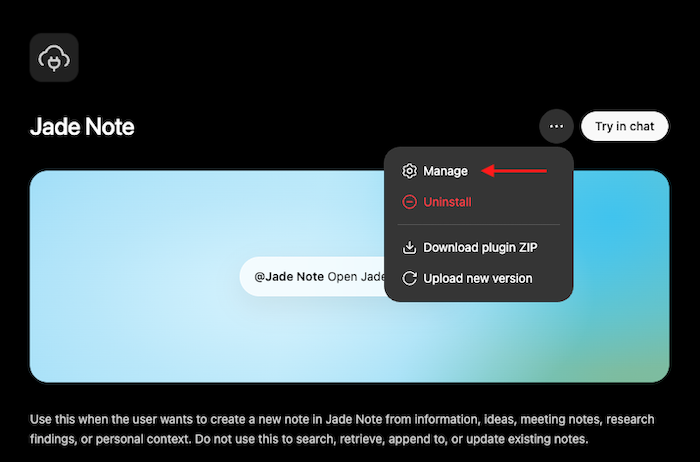
-
Open the … menu next to Try in chat and click Manage.
-
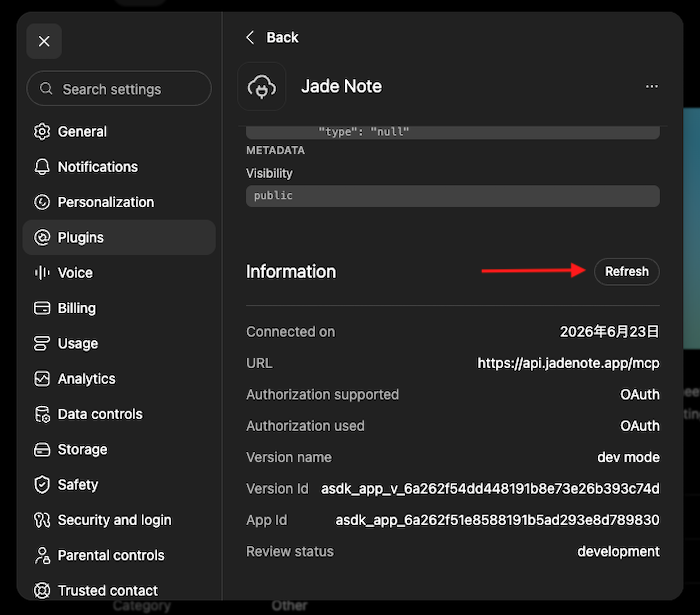
Click Refresh next to Information. Where the button appears may
vary with your plan.
- Confirm that the tool list changed, then start a new chat.
If you cannot find Refresh, or the update does not show up, remove the Custom MCP and add it again with the steps above.
ChatGPT calls the wrong Jade Note app
If both the ChatGPT Plugin and a Custom MCP are added, ChatGPT may call either one. Disable the one you do not use, or select the one you want for the chat.
Developer mode is not available
Your ChatGPT account or workspace policy may not allow developer mode. Install the ChatGPT Plugin instead; it needs no developer mode.
Sign-in or account linking fails
Restart the connection from ChatGPT's app settings. If the problem persists, sign in to Jade Note in
the same browser first, then retry. For a Custom MCP, confirm the URL is exactly
https://api.jadenote.app/mcp.
ChatGPT cannot find or edit a note
Check the category's MCP access. Categories set to no_access are intentionally invisible
to ChatGPT, and read_only categories cannot be changed. Some features, such as Catch Up and
restoring older versions, are available only on Pro or the Pro trial.
A write should be reviewed or undone
Every write returns what changed and the arguments for undo_note_edit, so you can ask
ChatGPT to undo it. Version history, checkpoints, and rollback let you inspect or restore earlier
note content.
Related
Support
For connector setup, account linking, or MCP access issues, contact [email protected].